How to Print Double Sided on Any Printer
To print double sided, open the print dialog, look for a setting called Print on both sides, 2-Sided or Two-Sided, pick long-edge binding, and print. If the option is missing, print the odd pages, put the stack back in the tray, and print the even pages on the other side. Either way, run one sheet of plain paper first so a wrong flip costs you nothing.
Where the double-sided setting lives
The setting is in the print dialog, under a name like Print on both sides, 2-Sided Printing or Two-Sided. It only appears when the driver knows your printer can flip paper. On Windows, Epson puts its 2-Sided Printing option on the Main tab of the printer settings. On a Mac the same choice is in the print window, under Two-sided Printing Settings, or on Brother drivers in a Two-Sided dropdown.
Two choices decide what you see there. Epson's Windows driver, for example, offers Auto and Manual, each with long-edge or short-edge binding. Auto means the printer pulls the sheet back in and prints the second side by itself. Manual means it prints one side, then prompts you to flip the stack along the long or short edge. If the dialog shows neither, the numbered list further down gets both sides printed by hand.
If your printer has duplex
Choose the Auto option, set long-edge binding for a normal portrait page, and print one copy before the rest. On Windows, open the printer's settings from the app's print dialog and pick a 2-Sided Printing option on the Main tab. On a Mac, open the print window and set Two-sided Printing Settings. Epson's advice is to print a test copy and follow any on-screen instructions, and that holds even on a printer you know, because the binding edge is easy to set wrong.
Paper matters more here than in single-sided printing. The sheet goes through the rollers twice, so paper that curls, or that is heavier than the driver expects, can jam on the second pass. Epson's Manual option exists for paper types that do not support automatic duplexing. Take that route when cardstock refuses to go around. Load a few sheets at a time until the first pass comes out right. Keep the output tray clear, so the printed side does not smear while the second side prints.
If it does not, print double-sided by hand
Manual double-sided printing is two print jobs with one flip of the paper stack between them. The order matters more than the speed, so work through it once with a short document.
- Count the pages. With an odd page count, the last page has nothing behind it. Add a blank page at the end, or expect to remove the last sheet before the second job.
- Print one set of pages only. In the page range of the print dialog, choose odd pages or even pages. Which set first? Brother's Mac instructions print Even Only, then Odd Only, and Epson's Manual option prints one side and prompts you to flip. Either order works if you keep it straight.
- Wait for the whole first set to finish, and give the last sheet a minute if the ink looks wet.
- Reload the stack flat, blank side facing down, in the same tray it came from. Keep the sheets in the order they came out, and do not turn the stack end for end unless a test sheet told you to.
- Print the other set, in the same order as the first, so page 2 lands on the back of page 1.
Step 4 is where it goes wrong, because every printer feeds paper its own way. Before you trust the method with a 20-page document, run one test. Pencil an X on the top edge of a plain sheet, feed it face up, and print a single page. Then look where the X ended up: top or bottom, printed side or blank side. That one sheet tells you how the stack has to go back in. Brother also says not to use bond paper for manual duplex.
PDFs that will not flip
When a PDF prints on one side only, the usual cause is that two-sided printing was switched on in one place and off in another. A PDF passes through two sets of options: the viewer's print dialog and the printer driver's properties behind it. If the viewer shows Print on both sides and nothing happens, open the printer properties from that same dialog and set 2-Sided Printing there as well. Printing from a browser adds a third layer, since the browser has its own print dialog.
The driver can be the cause on its own. Brother says duplex output that comes out upside down usually means a generic printer driver is in use. The fix is to install the manufacturer's driver. A generic driver can also hide the duplex option entirely, because it does not know the printer can flip. And a one-page PDF has nothing to put on the back. Printables made for both sides carry the back on page 2, so check the page count before you blame the printer.
Bookmarks with a reading log on the back
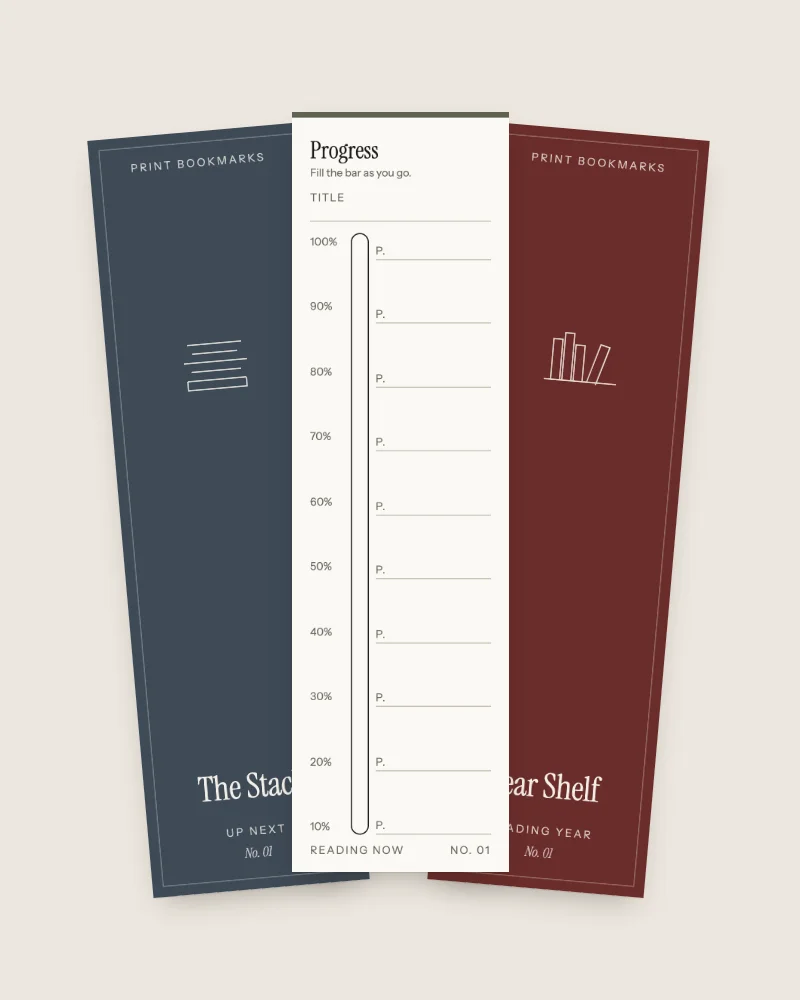
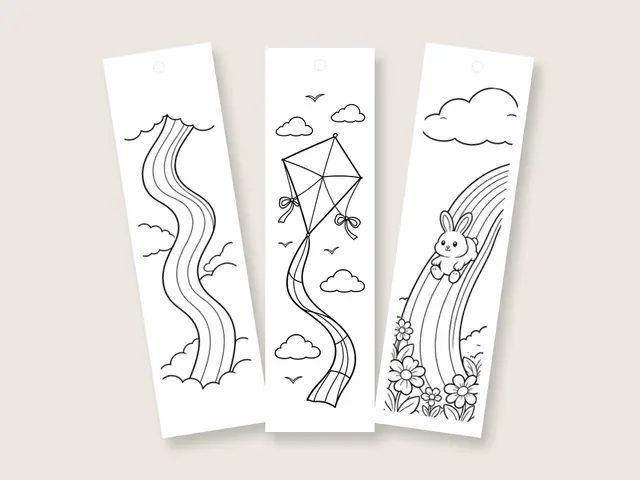
Printables made for both sides are a good first duplex job, since the back only has to line up roughly with the front. Our free coloring bookmarks with a reading-log back hold 4 bookmarks of 2 by 7 inches per sheet. Choose the reading-log back in the download, and page 2 carries lines for the title, dates, pages, a star rating and notes. Print it double-sided with a long-edge flip, on 65 lb cover cardstock (about 176 gsm) if your printer will duplex it, or by the manual route above.
Printables with a printed back are the wrong choice when you only want the picture. Print page 1 alone and skip the duplex question. For a log with more room than a bookmark back, a two-sided reading log on a full sheet works better, and a ruler and 6 hand-drawn lines on the back of any bookmark do the job without a second print.
Whatever you print, set the scale to 100% first, or the cut marks on the two sides stop matching. The checklist for printing bookmarks at the right size covers that setting. The mandala set, with 40 bookmarks to pick from, is a good first double-sided print for a child who has read about the meaning behind a mandala.
Long edge or short edge, tested on plain paper
Long-edge binding flips the sheet on its long edge and short-edge binding flips it on the short edge. For a portrait page, a long-edge flip puts the back the same way up as the front. Turn the sheet like a book page and both sides read normally. A short-edge flip puts the back upside down relative to the front, which is what a landscape document or a flip-over notepad wants. Brother notes that you may need to try different binding options before the pages come out right.
So the test is 1 sheet of plain paper and a 2-page document. Print it on Auto with long-edge binding, then turn it over the way you would turn a page. If the back reads upside down, change to short-edge binding and print the sheet again. If a generic driver is in use, install the manufacturer's driver first. Write the setting that worked on that sheet and keep it next to the printer.
Questions
Where is the double-sided setting on Windows and on a Mac?
On Windows it sits in the printer's own settings, reached from the app's print dialog, and Epson puts it on the Main tab as 2-Sided Printing. On a Mac it is in the print window, under Two-sided Printing Settings on Epson drivers or a Two-Sided dropdown on Brother drivers.
Can you print double sided when the printer has no option for it?
Yes. Print the odd pages, reload the stack flat with the blank side facing down, and print the even pages, after one test sheet with a pencil mark so you know which way your printer feeds.
Why does a PDF print on one side only?
Usually the two-sided setting is on in the PDF viewer but off in the printer driver behind it, or the other way round, and the driver decides. Set it in both places, and if the back comes out upside down, swap long-edge for short-edge binding or replace a generic driver with the manufacturer's.
Sources
- Epson, Selecting Double-sided Printing Settings - Windows (n.d.) (last checked 2026-10-13)
- Epson, double-sided printing FAQ (ET-2980/2988) (n.d.) (last checked 2026-10-13)
- Brother, Print on both sides of the paper - Windows or Macintosh (n.d.) (last checked 2026-10-13)
- Brother, 2-sided (duplex) documents print upside down (n.d.) (last checked 2026-10-13)